
Using MATLAB in Jupyter notebooks on Windows
Published:
After a while of using R notebooks, I found working with MATLAB in its IDE really unintuitive. I’d read that you can run MATLAB from IPython, but the instructions seemed a bit dated, and following them still didn’t get MATLAB working with Jupyter (the spin-off from IPython).
I wanted to analyse electroencephalographic (EEG) activity, and the best tools for the job (EEGLAB and ERPLAB) are written in MATLAB. I still wanted the convenience of a notebook, so I had to get Jupyter and MATLAB talking to each other.

It took me a while to set everything up, so I thought the process was worth sharing. To begin with, I had three versions of MATLAB (2011a, 2011b, and 2016b) and two of Python (2.7 and 3.3), which didn’t make my life any easier on Windows 7.
In the end I kept only MATLAB 2016b, to avoid paths pointing at the wrong version. MATLAB’s Python engine only works with MATLAB 2014b or later, so hanging on to the older versions could only cause trouble.
Instructions
- Install Anaconda (2.7).
- Install MATLAB (2014b or later). If you're a student, there's a good chance your university has a licence. There's also a free MATLAB-like language, Octave, which I haven't used with Jupyter — though it apparently can be done. This post sticks to MATLAB.
- Install MATLAB's Python engine: run as admin and follow the steps on the official site.
- With the engine installed, you can add metakernel, matlab_kernel, and pymatbridge. Open the Anaconda prompt (again as admin) and run `pip install metakernel`.
- In the Anaconda prompt, run `pip install matlab_kernel` (this pulls in the development version of the MATLAB kernel).
- Run `pip install pymatbridge` to install the connector between Python and MATLAB.
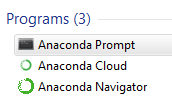
… voilà!
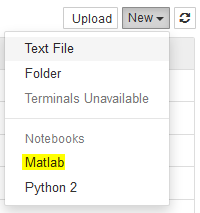
MATLAB should now show up in the list of available languages. Pick it, and you can start using it in a Jupyter notebook: 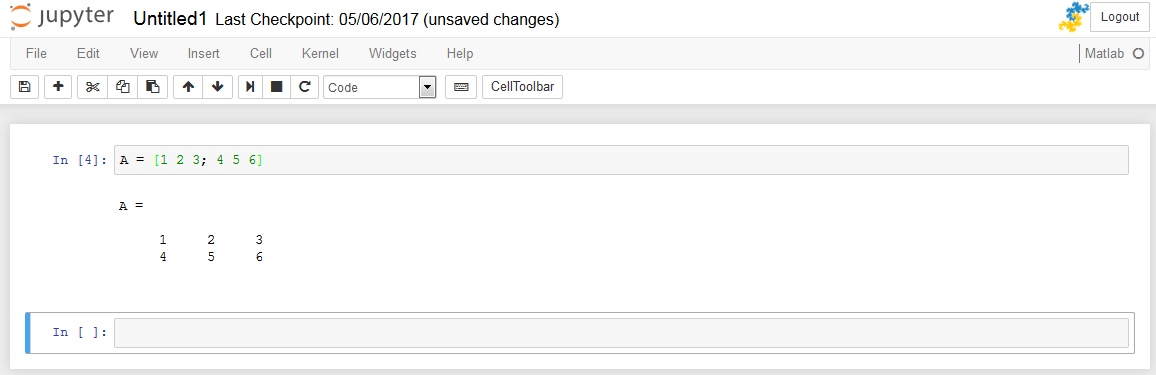
Issues Of course, things weren’t always this smooth. Early on, I hit problems installing MATLAB’s Python engine. The official site suggested running:
cd "matlabroot\extern\engines\python"
python setup.py install
I did, but it threw an error:
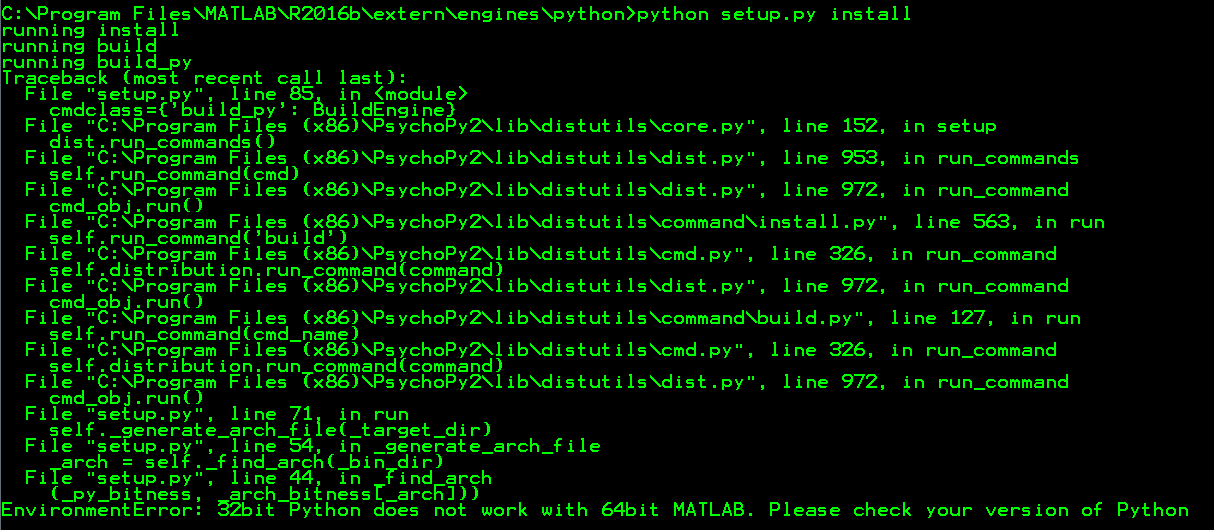
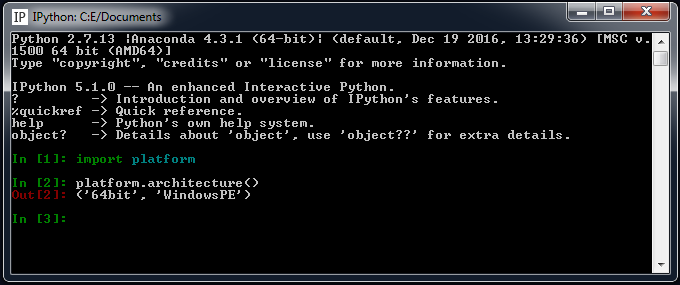
Happily, the error message was clear: I needed to point at the 64-bit version of Python. I double-checked with:
import platform
platform.architecture()
Which returned 64-bit as expected:
Running the command with the full path to Python fixed it:

Summary I hope this helps. I ran into a few other issues that were pretty specific to my system, so I’ve left those out — but these instructions should be enough to get MATLAB working with Jupyter.
PS: I’ve also written up how to use MATLAB with Jupyter on Ubuntu.