
Configuring Tableau Web Data Connectors on Windows 10 - using Google Sheets
Published:
Tableau Desktop 9.1 is out, and it introduces Web Data Connectors as a new type of data source. Handily, Tableau shipped a few working connectors to popular web data sources, and Google Sheets is one of them. I tried connecting to Google Sheets today, but couldn’t find a step-by-step guide, and the official thread was light on the details of configuring a WDC. It took me a while to get going, so I wrote this tutorial in the hope it saves others the same trouble. It covers using Tableau web connectors hosted locally.
Before you can use Web Data Connectors, you need to switch on the Internet Information Services (IIS) Manager (there’s more on this in this Stack Overflow thread). On Windows 10, press the Windows key and type Windows Features, go to Turn Windows Features On or Off, and tick the box next to Internet Information Services. 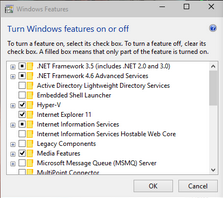 You should now see IIS under Control Panel > Administrative Tools.
 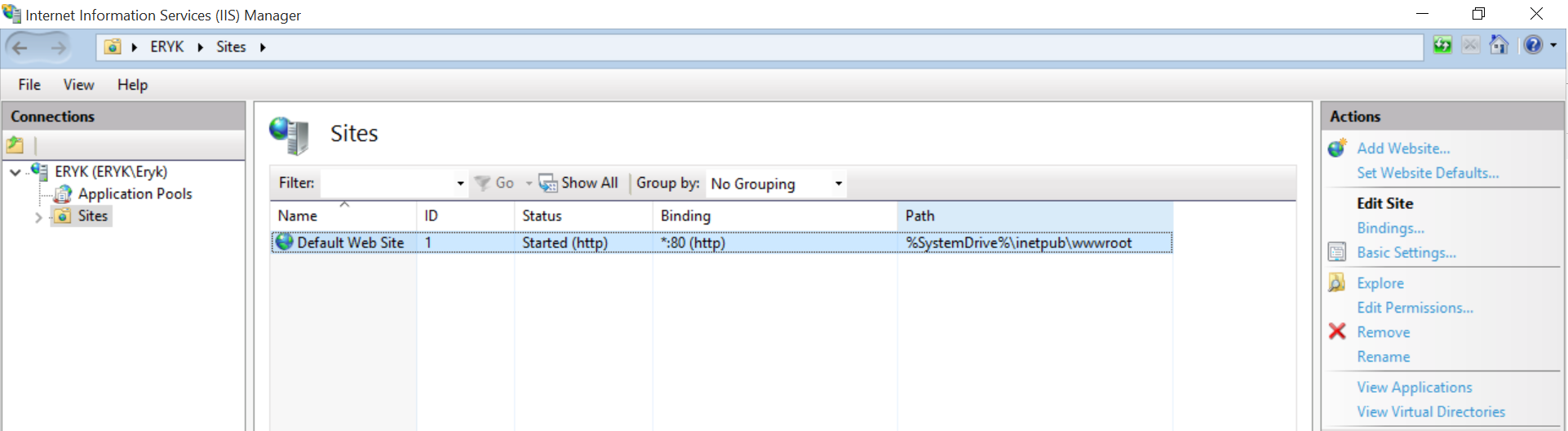 Open IIS Manager and check the Binding and Path columns. Binding should be set to
 *:8888 (http), and Path points to the folder where the Tableau connector files will live. If Binding shows a different port (mine defaulted to 80), go to Actions and click Bindings. 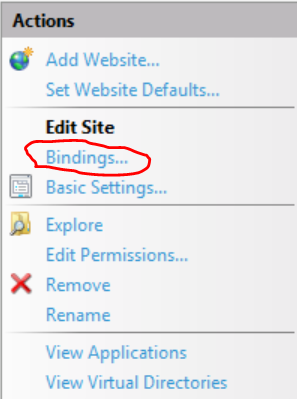 Then change the Port number to 8888 and click OK.
 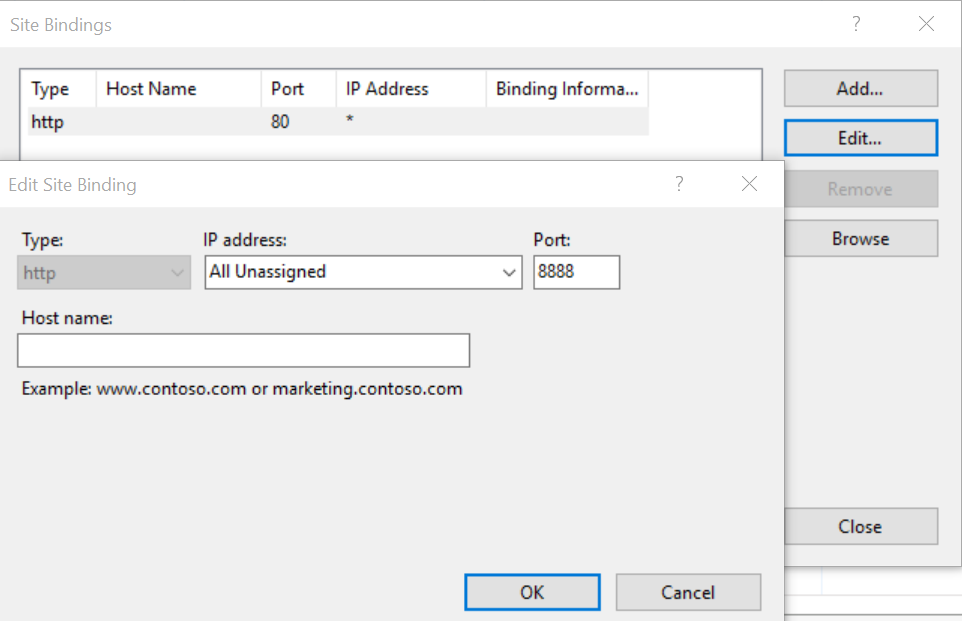 Now your IIS Manager configuration should look like this
  Check the Path column too. It defaults to
 %SystemDrive%\inetpub\wwwroot, which usually means C:\inetpub\wwwroot.
To use Google Sheets as a data source, start by downloading the Web Data Connector SDK. Unzip the file, open the Examples folder, and copy everything in it to the Path specified in IIS — in my case, C:\inetpub\wwwroot.
You should now be ready to use Web Data Connectors. Go to Connect > To a server > Web Data Connector, and a pop-up like the one below should appear. 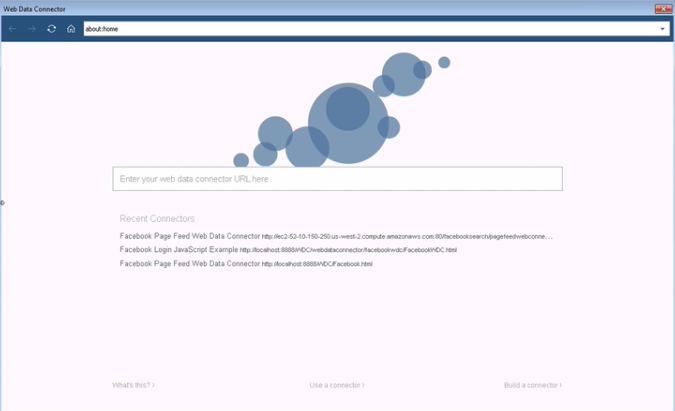
If you copied Tableau’s example files into your IIS path, type the following into the address bar of the WDC pop-up: http://localhost:8888/GoogleSheetsConnector.html You should see this window. 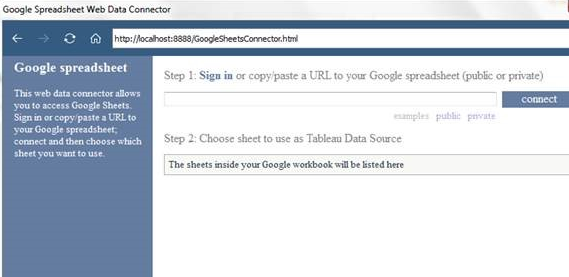 All that’s left is to paste in a link to the Google Sheet you want to use. If the Sheet is private, you may also need to log into your Google account. And that’s it — you can now use Google Sheets as a data source. Hooray!
To use a different connector, just change the path in the address bar of the pop-up.