
Automatic pitch extraction from speech recordings
Published:
I needed to extract mean pitch values from recordings of human speech, and I wanted to automate the job so I could rerun my analyses easily. So I wrote a couple of scripts to do it much faster.
Here’s my recipe for extracting pitch from voice recordings.
- Cleaning audio files
My audio files were stereo recordings of a participant saying /a/ while hearing (near) real-time pitch shifts in their own productions. The left channel contains the shifted pitch (heard by participants) and the right channel contains the original speech productions.
The first step is to check the recordings for any non-speech sounds. I used Audacity for this. Stray grunts or sighs can throw off the analysis scripts, so I silence the irrelevant parts of the track (Ctrl+L in Audacity). Once the track is clean, I split the channels and save them as separate WAV files.
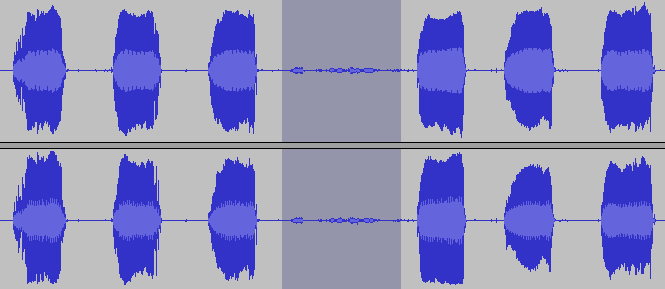
Acoustic signal used in the analysis. Highlighted part is showing noise that should be removed.
- Splitting continuous recordings using SFS
My pitch-extraction scripts expect each utterance to sit in its own WAV file, so I need to split up the continuous recordings. You can do this by hand, but that gets tedious for longer recordings. The Speech Filing System (SFS) can split continuous files on silence for you.
Manual:
- Load a sound file
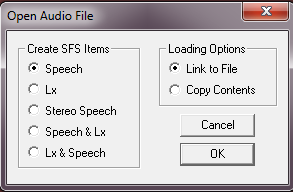
- Create multiple annotations
Tools > Speech > Annotate > Find multiple endpoints
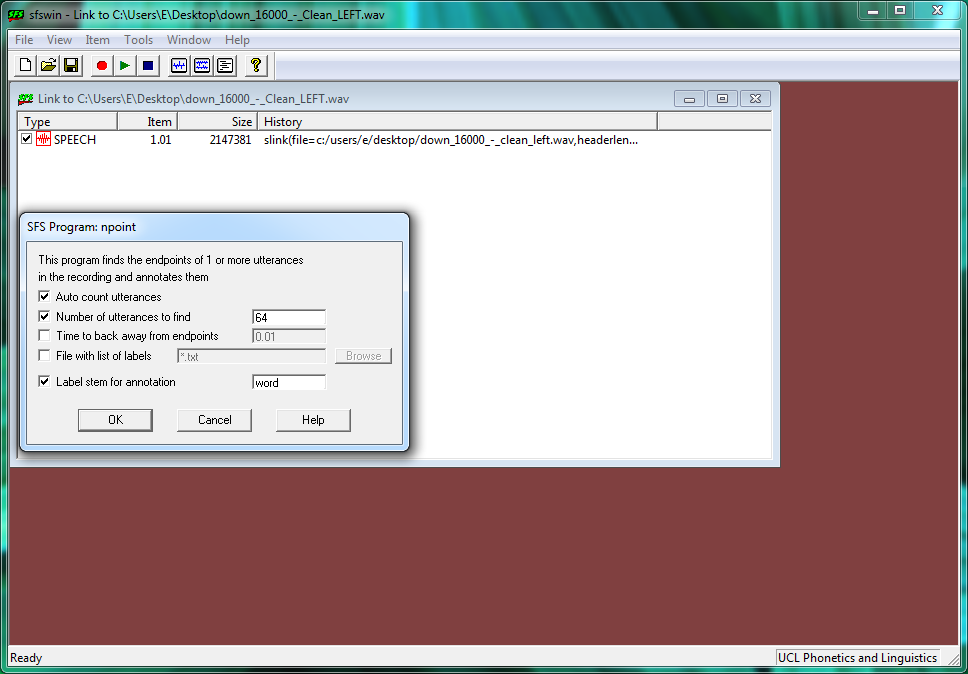
Specify the npoint values. There’s more detail here. You don’t need to know the exact number of utterances — a rough estimate should do the trick.
Visualise the results of automatic annotation:
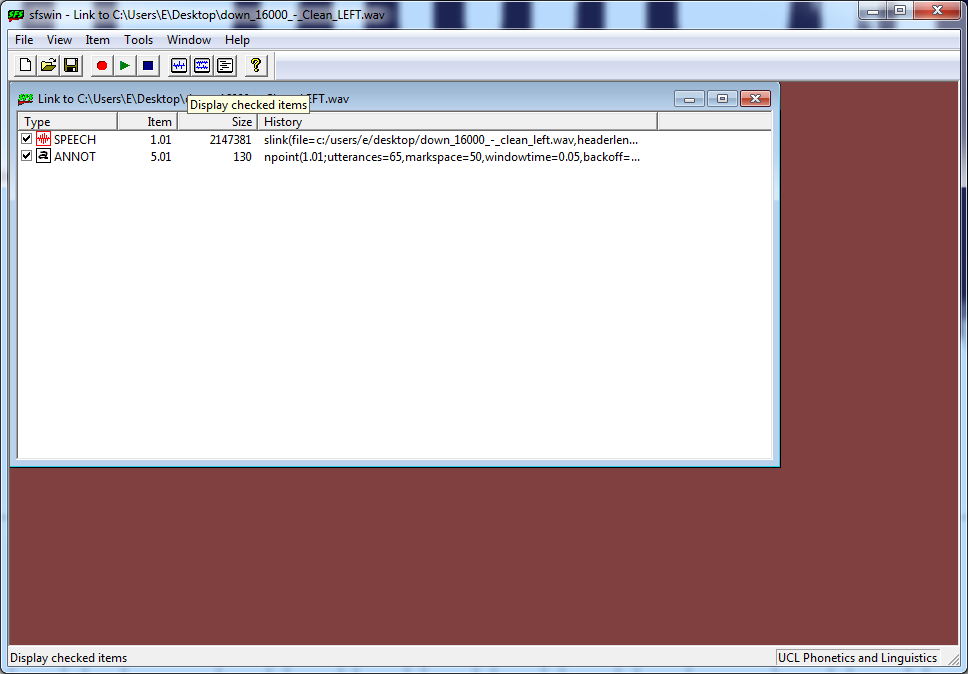
Check that the annotations look right. If they don’t, tweak the npoint settings until you get what you need.
- Chop the files on annotations
Tools > Speech > Export > Chop signal into annotated regions
This saves the files in SFS format, which PraatR can’t read, so they need converting to WAV.
- Convert sfs into wav files
Load the files you want to convert, highlight them, and go to:
File > Export > Speech
Automatic:
If you’d rather not spend hours clicking through all of the above, there’s a simpler option: a single program that runs the whole lot for you.
Here’s a batch script that follows the steps above (with a few extras thrown in).
- Extracting mean pitch using PraatR
You could extract pitch by hand in Praat by going to
View & Edit > Pitch > Get pitch
but doing that across many files is slow and error-prone.
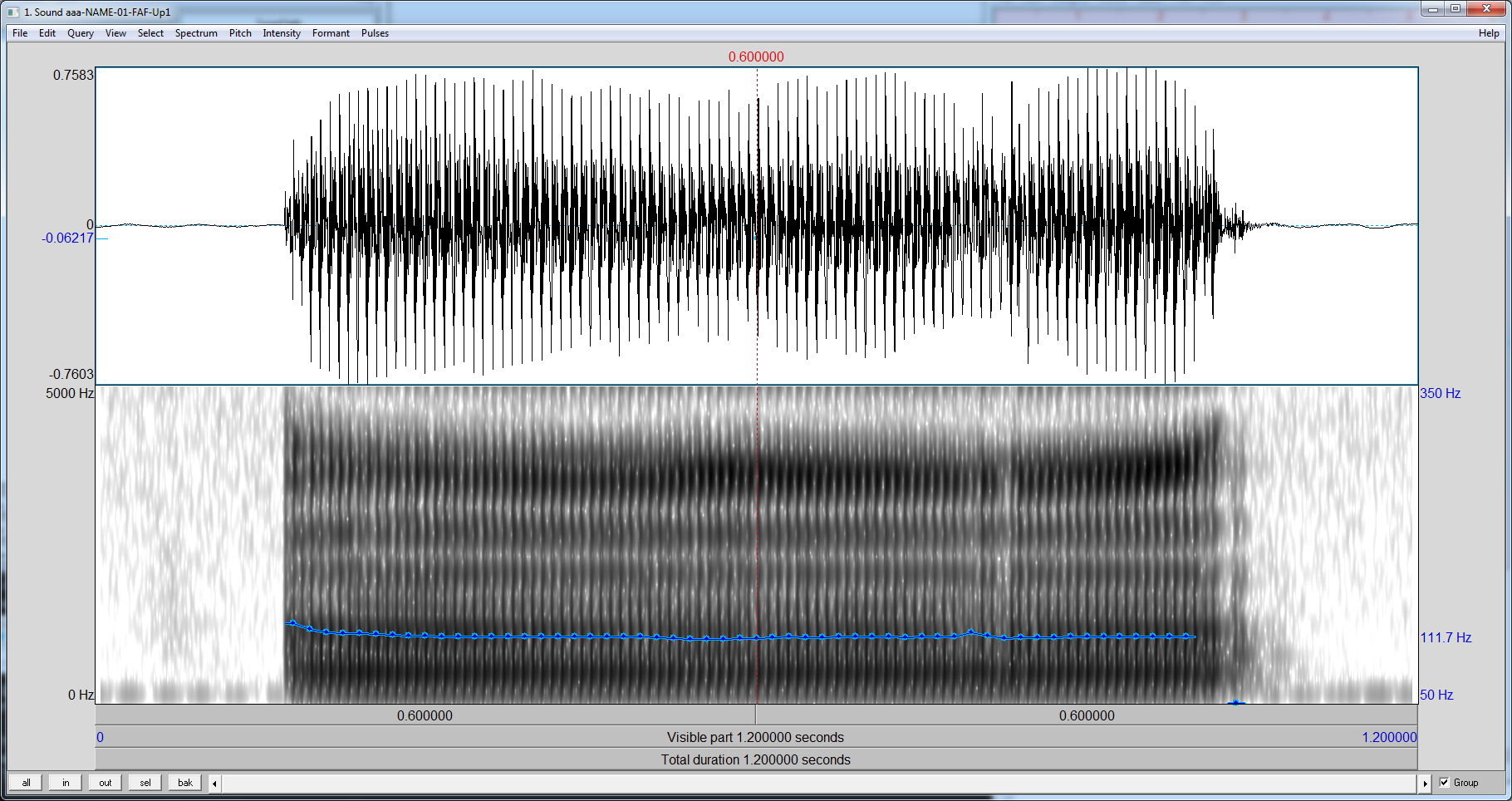
Happily, there’s a bridge between Praat and R (PraatR) that speeds this up.
I extracted the mean pitch and the duration of each file — the duration is handy for rejecting non-speech files. Here’s the script: That should leave you with a nicely formatted CSV file.
I hope it saves you some time.